

- AI READY — run AI models locally (chat, image, video, voice) on your own GPU.
- AI OPTIMAL — also accept network earning workloads to your machine and get paid in GUSD.
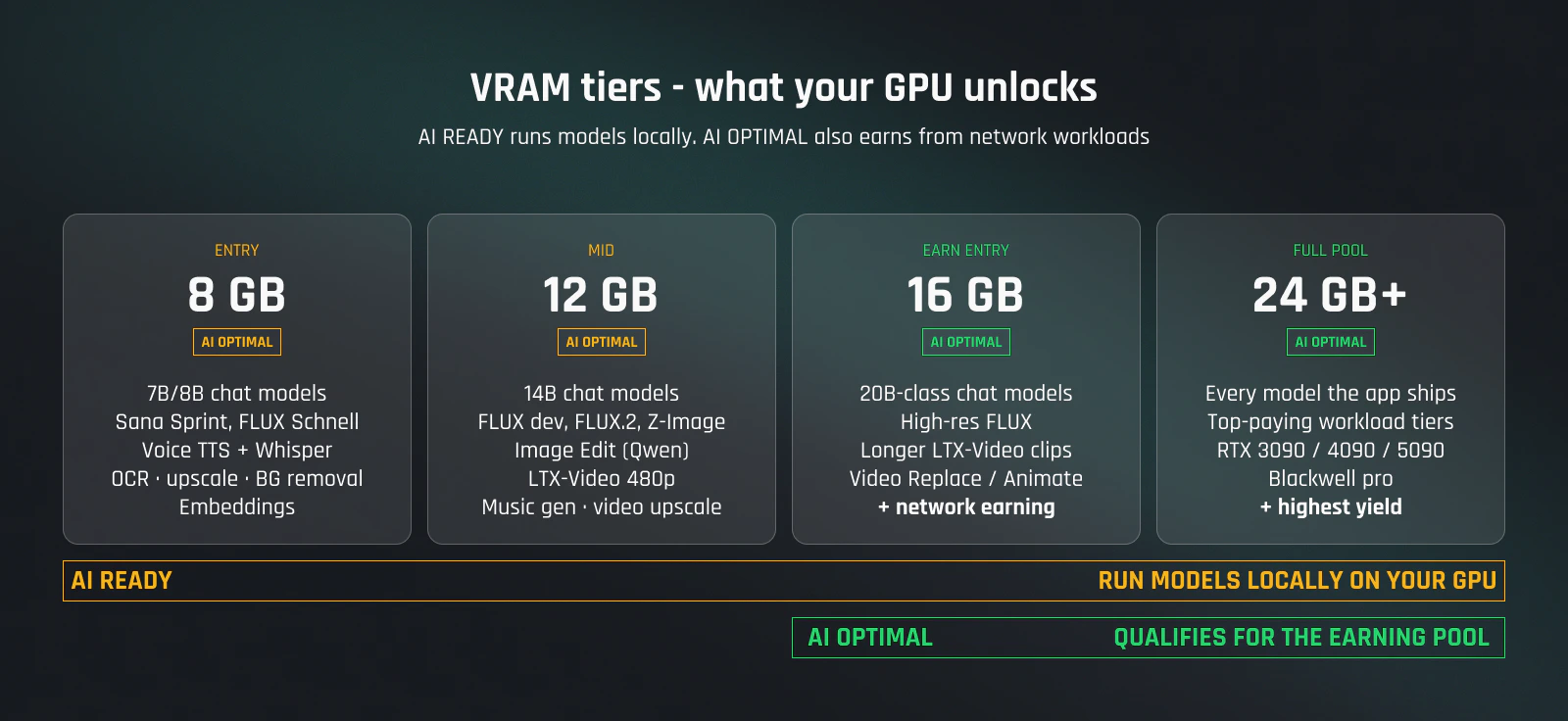
AI READY — run models locally
Lower bar. If you can run modern AAA games at 1080p, you can run local AI.- OS — 11. Windows 10 is not supported
- GPU — NVIDIA RTX with 8 GB+ VRAM (RTX 3060, 4060, 5060 and up)
- RAM — 16 GB
- CPU — modern x86-64 (Intel 8th gen / AMD Ryzen 2000 or newer)
- Driver — recent NVIDIA studio or game-ready driver
- Disk — ~30 GB free for downloaded models
The Model Center inside the app shows live fit per model on your specific hardware.
AI OPTIMAL — earn from GPU sharing
Earning runs on approved device types. Two configurations qualify today:
Both numbers count, and on the 16 GB path the architecture counts too — a 16 GB card older than Ada doesn’t qualify no matter how much RAM you add.
On top of everything AI READY needs, earning also wants:
- Network — stable broadband (50 Mbps down comfortable). Earning workloads stream small payloads — consistency matters more than peak speed.
- Uptime — leave the machine on. Most pay comes from being online when a workload arrives.
The profit calculator gives you a per-GPU yield estimate based on current network demand.
What’s not supported
- AMD GPUs — NVIDIA only in the AI App today.
- macOS / Linux — AI App is Windows-only. The Mobile app on iOS/Android handles account management, not local AI.
- iGPUs — integrated graphics don’t have enough VRAM.
- Multi-GPU per machine — the AI App uses a single GPU per process. Multi-machine is fine; GHXP and earnings consolidate per account.
Upgrading the GPU
Swap GPUs without recreating your account. On next start, the AI App detects the new card and re-runs its benchmark — typically a couple of minutes. GHXP, your account level and earning history all carry over — none of them are tied to the hardware. Workloads matched to the new card take effect from the next dispatch.Tips before you buy
- Run your exact rig through the profit calculator before spending. Both badges (AI READY / AI OPTIMAL) are checked there.
- For AI OPTIMAL, check all three: VRAM, system RAM and architecture. A 16 GB card qualifies only if it is Ada or newer and backed by 64 GB of RAM. A 24 GB card qualifies at 32 GB of RAM, whatever the architecture.
- Used 30-series cards can be cheap entry to AI READY (3060/3070 at 8–12 GB). For AI OPTIMAL on used hardware, only the RTX 3090 (24 GB) clears the bar — and check warranty, sustained load is harder on cards than gaming.
- Check live network demand at network stats. A bigger GPU only pays more if there are workloads in the queue for it.
Next
Modules
Match modules to what your GPU can run.
Earning model
What workloads pay more, and how to read the queue.
Live network stats
Current GPU count, VRAM, and capacity across the network.
Install the app
Step-by-step from download to first run.